

Ever found yourself in a situation where you need to show off that epic cat video or a killer app on your iPhone but can’t quite figure out how to share it with your Mac? You’re not alone. Screen sharing between these two devices can feel like an elusive magic trick, but don’t worry—it’s easier than it sounds.
Understanding Screen Sharing
Screen sharing enables users to display their device’s content on another screen. Connecting an iPhone to a Mac simplifies sharing videos, apps, or documents.
What Is Screen Sharing?
Screen sharing allows one device to transmit its display to another device. This technology includes viewing or controlling the primary device remotely. Users often utilize it for presentations, tutorials, and collaborative work with ease. Screen sharing enhances interaction by providing a real-time view of both devices.
Benefits of Screen Sharing iPhone to Mac
Screen sharing between an iPhone and a Mac offers various advantages. Users gain the ability to showcase mobile apps on a larger screen. This feature aids in detailed presentations, making it easy to explain app functionalities. Collaboration improves as multiple users can engage with content simultaneously. Accessing files across devices streamlines workflows, saving time and effort. Enhanced visibility allows for better interaction and understanding of material being shared.
Methods for Screen Sharing iPhone to Mac
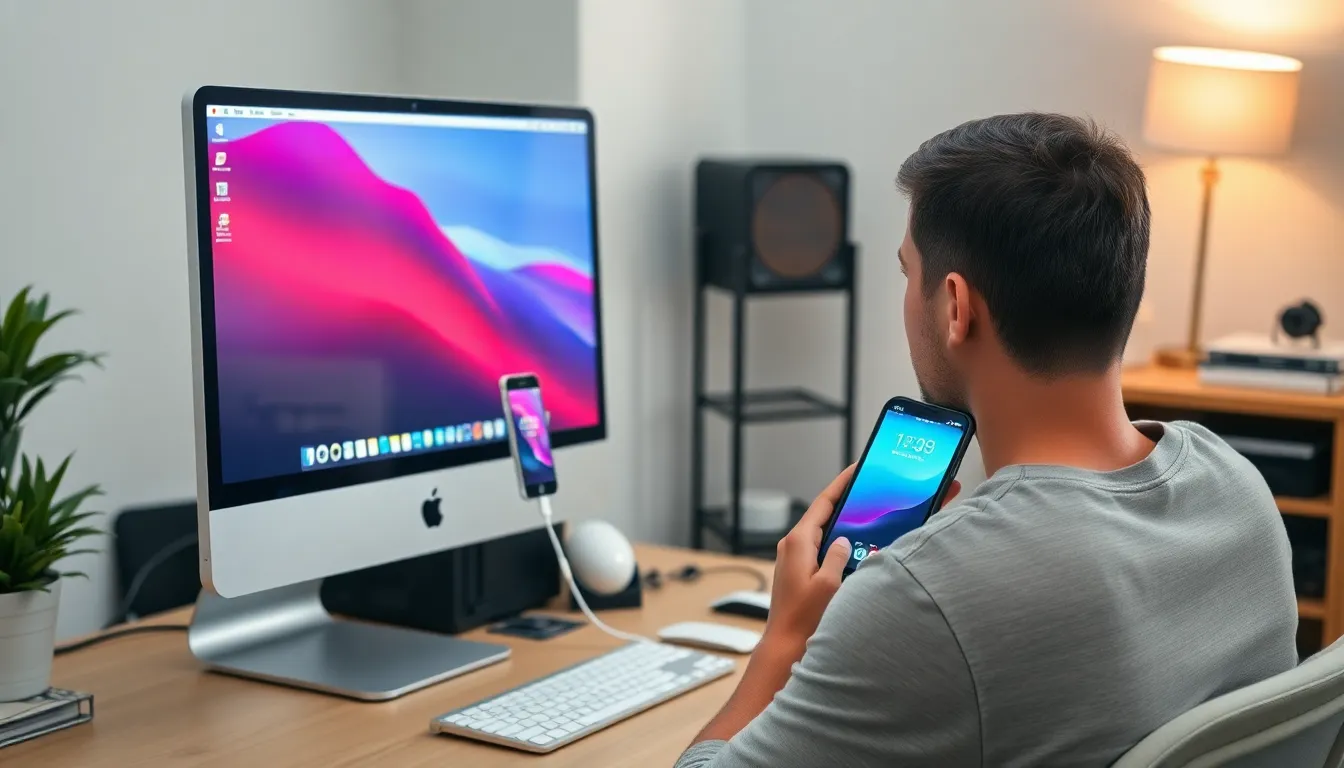
Screen sharing offers various methods for connecting an iPhone to a Mac. Two notable options include using QuickTime Player and AirPlay.
Using QuickTime Player
QuickTime Player enables straightforward screen sharing. Connect the iPhone to the Mac using a lightning cable. Open QuickTime Player on the Mac, then select “New Movie Recording” from the File menu. Click the arrow next to the record button and choose the iPhone as the video source. The iPhone screen appears on the Mac instantly, allowing users to showcase applications, photos, or videos seamlessly. This method provides high-quality resolution, ideal for presentations and tutorials.
Using AirPlay
AirPlay offers a wireless solution for screen sharing. Ensure both devices are connected to the same Wi-Fi network. Swipe down from the top right corner on the iPhone to access the Control Center, then tap “Screen Mirroring.” Select the Mac from the list of available devices. The iPhone screen displays on the Mac almost immediately, allowing for real-time interaction. This method supports various content types, making it suitable for casual sharing or more formal presentations.
Troubleshooting Common Issues
Users may occasionally encounter issues while screen sharing from an iPhone to a Mac. This section addresses various common problems and their solutions.
Connection Problems
Connection issues can occur during the screen sharing process. Check the USB cable to ensure it’s not damaged for QuickTime Player users. Also, verify that the iPhone is unlocked and on the home screen, as these steps can hinder successful connections. With AirPlay, make sure both devices connect to the same Wi-Fi network. Restarting the router may help resolve network-related problems. Users should also confirm that their devices have the latest software updates installed. Outdated software may prevent proper communication between devices.
Audio Issues
Audio problems can impact the screen sharing experience. Ensure that the sound is unmuted on the iPhone, as it might be silenced during presentations. Additionally, checking the volume levels on both the iPhone and Mac is essential for a complete experience. When using AirPlay, audio may lag due to network instability. Switching to a wired connection can solve this problem, allowing users to enjoy audio in sync with the visuals. It’s also important to confirm that the correct audio output device is selected in system preferences on the Mac.
Tips for Optimal Screen Sharing
Optimal screen sharing enhances user experience and improves the effectiveness of presentations. Employing best practices ensures smooth, clear connections between devices.
Best Practices
Ensure strong connections between the iPhone and Mac during screen sharing. Using a quality lightning cable for QuickTime Player minimizes disconnections. For AirPlay, verify that both devices are on the same Wi-Fi network to maintain a stable connection. Adjust settings for screen resolution to enhance clarity on the Mac display. Close unnecessary apps on both devices to allocate resources effectively, reducing lag or stutter during sharing sessions. Maintaining a clean and organized workspace also aids in showcasing content effectively.
Recommended Apps
Several apps can enhance the screen sharing experience. Reflector 4 provides seamless wireless screen mirroring for iPhone to Mac without cables. ApowerMirror allows multi-device interaction, supporting Android devices and additional features such as screen recording. TeamViewer proves useful for remote access and collaborative work, enabling real-time sharing and control over multiple devices. Each of these apps has unique features that can simplify the screen sharing process, promoting efficient communication and collaboration.
Screen sharing between an iPhone and a Mac opens up a world of possibilities for users looking to enhance their digital experience. With methods like QuickTime Player and AirPlay, sharing content has never been easier. Whether for professional presentations or casual sharing with friends, the ability to display an iPhone screen on a Mac allows for greater engagement and collaboration.
By following best practices and troubleshooting tips, users can ensure a seamless experience. Embracing these tools not only simplifies workflows but also enriches interactions, making it easier to connect and communicate effectively. The journey to mastering screen sharing is just a few steps away, paving the way for more productive and enjoyable digital interactions.


